|
About greenMeter Getting greenMeter The greenMeter Interface Setup and Calibration On the Road FAQ Support / Contact Info Release History Home ![]() ![]() ![]() ![]() |
Save gas. Save cash. Save the planet. ![]() You can learn from greenMeter before you even get in the car. By tipping the device forward and backward to simulate acceleration, you can study the graphs in greenMeter to see the effects of acceleration, aerodynamic drag, and rolling resistance across the speed range. Then implement your knowledge on the road, by choosing an efficient cruising speed and using the built-in g meter to limit acceleration while you drive. greenMeter can compute data in US or metric units. The software offers two calibration options for the accelerometer, one to correct internal offsets, and the other to set the forward direction when the device is positioned in a vehicle. Settings and preferences (including inputs to specify vehicle, weather, and fuel characteristics) are accessed from the "i" button. To switch between the various graph modes, just tap the display.
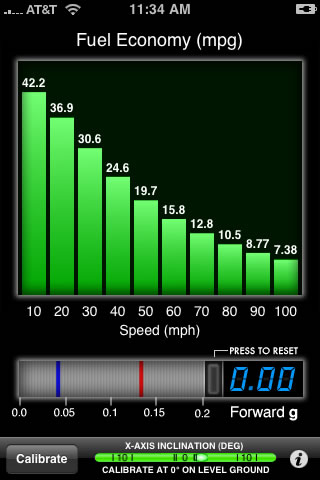
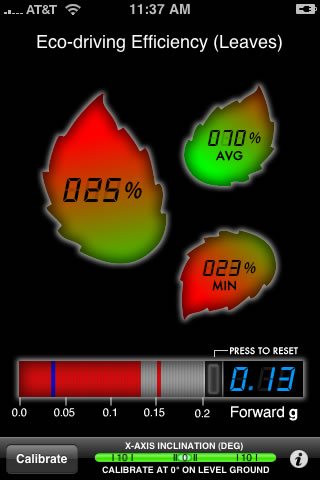
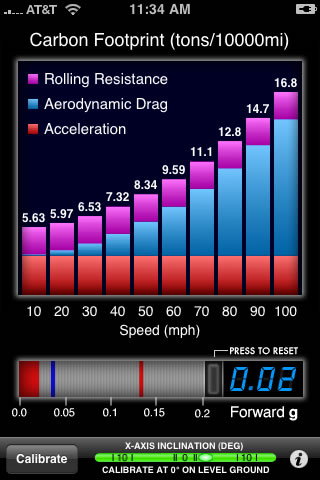
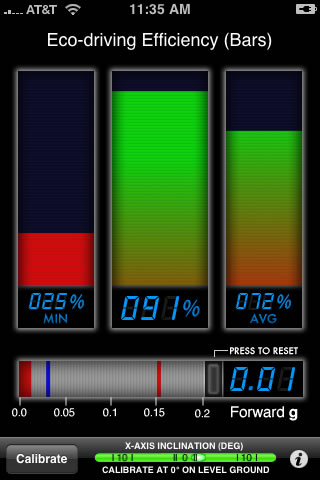
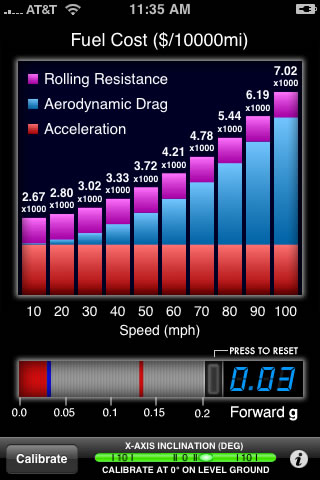
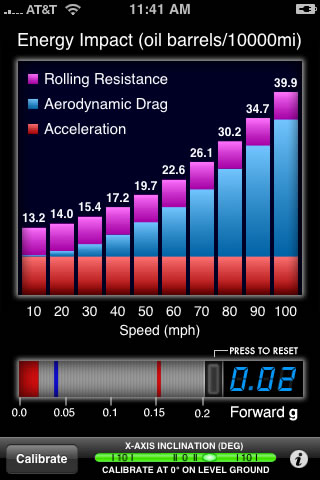
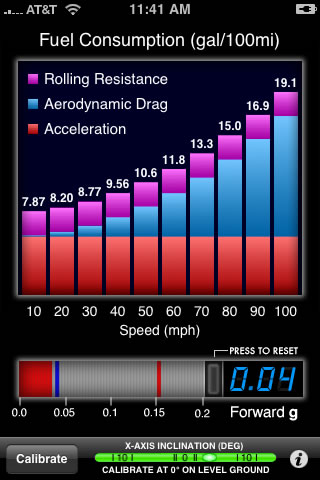
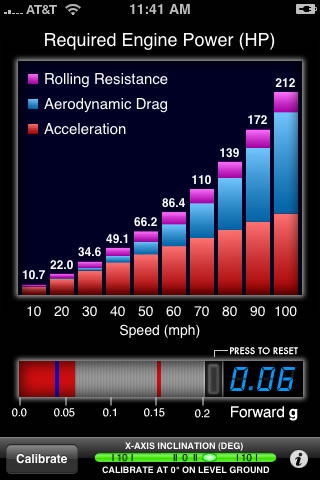
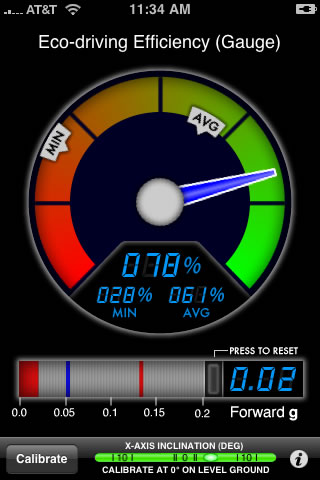
Getting greenMeter greenMeter is available at the iTunes App Store for $5.99. Click the icon below to go to the iTunes App Store and view the greenMeter product listing. ![]() Works on any iPhone or iPod Touch with iPhone OS 2.0 or later The greenMeter Interface The greenMeter interface has two main parts. A forward acceleration g indicator is on the the bottom of the screen, focused to the range of 0.0-0.2g (typical acceleration levels for drivers looking to maximize fuel efficiency). The indicator has a blue marker showing the average acceleration level, and a red marker showing the peak acceleration level. Both markers can be reset with the button to the upper-right of the indicator. ![]() The upper portion of the screen shows six different graphs, which can be switched by tapping the screen. The available graphs include engine horsepower (HP or kW), fuel economy (mpg or km/L), fuel consumption (gal/100mi or L/100km), fuel cost (per 10000mi or 10000km), carbon footprint (tons/10000mi or tonnes/10000km), and energy impact (barrels/10000mi or barrels/10000km). The graphs show the level of each quantity across a speed range (0-100mph or 0-200km). With the exception of fuel economy, all graphs consist of a stacked bar showing portions due to rolling resistance (purple), aerodynamic drag or wind resistance (blue), and acceleration (red). The purple and blue portions are determined by your vehicle characteristics and speed. The red acceleration portion is directly under your control and can be minimized with careful throttle inputs. Together, these contributions stack up to show the total level. Drivers can use this information -- in whichever graph modes are most relevant to them -- to see the impact of speed and acceleration, and then choose the combination that results in the best compromise between performance and efficiency.
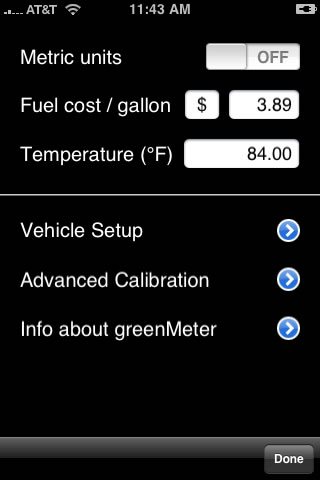
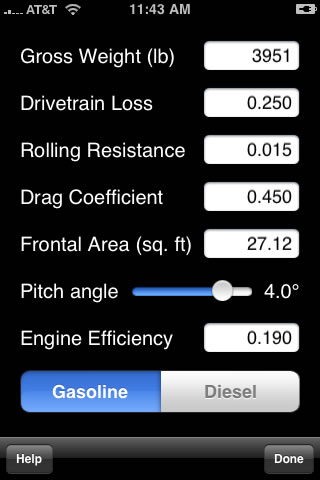
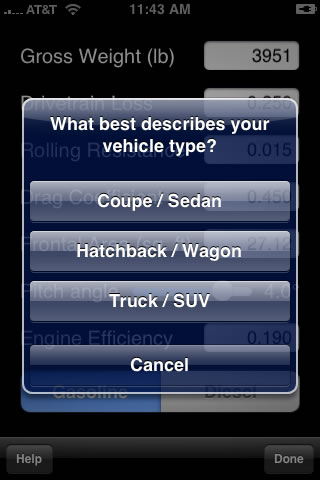
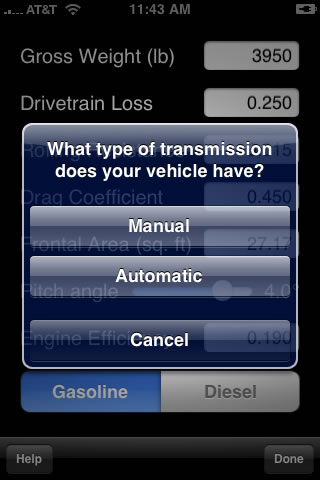
![]() ![]() Setup and Calibration Before use, there are a few settings you will want to enter. Press the "i" button to enter settings. Here you will find an important option -- a switch that can toggle greenMeter into metric mode, where metric units are displayed and metric vehicle conventions are used. Next, you can enter your typical fuel cost, and a currency symbol. greenMeter uses this to compute your long term fuel costs. The ambient weather conditions are used in the computation of aerodynamic drag. If you don't have access to the ambient pressure and temperature, standard day sea level values of 29.92 in. Hg and 70F (US units) or 101.31 kPa and 21.1C (metric) can be used to provide reasonable "nominal" results. Most users can change these settings on a seasonal basis and obtain good results. However, note that specifying the wrong pressure and temperature can throw aerodynamic drag off by 5-10% or more, which can have a significant effect on computed data at higher speeds. Under "Vehicle Settings", the first few inputs tell greenMeter how to compute power based on acceleration. First up is the vehicle weight (or mass in metric units). Use a number that reflects the weight of the vehicle, fuel, and driver/passengers. The drivetrain loss number specifies how much power is lost between the wheels and the engine. For a 2WD vehicle with manual transmission, use 0.15 (15%). For a 2WD vehicle with automatic transmission or a 4WD vehicle with manual transmission, use 0.20, and for a 4WD vehicle with automatic transmission, use 0.25. Rolling resistance is a function of the vehicle tires. In most cases, a value of 0.010 to 0.015 is appropriate. Vehicles with low rolling resistance tires should use a value between 0.006 and 0.010. Drag coefficient and frontal area determine the aerodynamic drag acting on a vehicle at a given speed. Most cars have drag coefficients in the range of 0.28 to 0.35; trucks and SUVs can be in the 0.35 to 0.45 range. Frontal area is simply the cross sectional or projected area of the vehicle, and is approximately the vehicle width multiplied by the vehicle height, minus the open area between the vehicle, ground, and tires. Drag coefficient and frontal area are usually published by manufaturers or car magazines, and can often be looked up on the internet. Next, we come to a correction for vehicle pitch. All vehicles tend to pitch backward on acceleration and forward on braking, and this motion could introduce error in measured and computed results. This effect can be offset by telling greenMeter about the pitch characteristics of the vehicle. The default setting is 2 degrees, meaning greenMeter assumes the vehicle pitches back (or forward) 2 degrees for every 1 g of acceleration (or deceleration). This is a good setting for most sports cars. If you have a sports car with a very stiff suspension, values between 1 and 2 degrees may be better. Vehicles with a softer suspension should use a pitch correction between 2 and 4 degrees. Finally, we come to inputs that greenMeter uses to determine fuel usage. The engine efficiency is a measure of how much of the fuel's chemical energy is converted to mechanical energy by the engine. Most gasoline engines have an efficiency in the range of 0.18 to 0.20 (ie, 18-20% -- not so great). Diesel engines are typically in the range of 0.42 to 0.47 (42-47%). The segmented button on the bottom allows you to choose the fuel type, gasoline or diesel, which determines the basic energy content of the fuel itself. Before use in a vehicle, the iPhone or iPod Touch needs to be calibrated in two ways. First, any accelerometer offsets in the device need to be corrected. The accelerometer used in the iPhone and iPod touch typically has ± 0.04g to 0.06g of offset per axis from the factory. This can be corrected out by using the "Advanced Calibration" option in greenMeter settings, with the device placed face up on a flat level surface (use a level to verify the surface is a good reference). Under normal circumstances, this particular calibration only needs to be performed once. Next, the device needs to be placed in a vehicle. There are a couple basic requirements for positioning and mounting the device, shown below: ![]() ![]() greenMeter has a simulated bubble level to assist with horizontal leveling, and lateral positioning is a matter of lining up the device's upper or lower edge with a lateral reference line on the vehicle. Interior features on the dashboard or console can assist with this, but don't hesistate to break out a string or measure more exactly -- the more accurate the positioning, the more accurate results will be. When properly positioned, the short edge of the device should align with an imaginery horizontal or lateral line passing evenly from one side of the vehicle to the other: ![]() The device can be inclined at an angle as long as the previous two requirements are met. In fact, an inclined position can actually improve accuracy! ![]() Some examples of acceptable positioning are shown below:
It goes without saying that you shouldn't take your attention off the road, so if you plan to glance at greenMeter while driving, be sure the iPhone/iPod is positioned like any other important gauge or instrument in the vehicle. Once the device is positioned properly, make sure it is tied down to the vehicle so that it does not shift position or turn into a hazard when the vehicle is in motion. Various types of iPhone/iPod mounts and cradles can be used, or the device could even be taped down for temporary use. At this point, you're ready to calibrate greenMeter for orientation. With the vehicle at rest on a level surface, press the "Calibrate" button on the main screen. This will cause the device to detect the vertical direction (using the acceleration of gravity) and take all the other information into account to identify the forward axis of the vehicle. When properly calibrated on a level surface with the vehicle at rest, greenMeter should show zero forward acceleration, meaning the device is now ready to detect forward motion. Calibration values are saved and can be re-used as long as the device position in the vehicle does not change, but greenMeter can be re-calibrated at any time (just go through the steps above with the vehicle at rest on a level surface). On the Road
OK, so greenMeter is calibrated and you have entered the settings you want. Once you start driving, greenMeter will vividly show the effects of acceleration. If you're interested in improving fuel efficiency and lowering fuel cost/usage and environmental impact, red is bad. You will want to minimize the amount of red displayed by greenMeter as much as possible, whether you're looking at the acceleration display or the various graphs. Because the graphs contain a lot of detail that may be too much to process while driving (leave that to your passengers), the acceleration meter is perhaps the best tool to use to train your driving style. Accelerations of 0.1g or less should be the goal, going as low as you can without impeding traffic or getting run over. Accelerations less than 0.1g may be tough to acheive in lower gears, but it gets easier in higher gears. While red is bad, blue and purple aren't great either. Though acceleration doesn't affect rolling resistance and aerodynamic drag, vehicle choice and the selection of cruising speed do. So you can exercise some judgement there. Driving a 3000 lb car at 60mph is going to be considerably more efficient than driving a 3 ton SUV at 90mph. In fact, greenMeter shows a significant difference between the two. Over 10000 miles, the speedy SUV would produce 10 more tons of CO2 (14 tons versus 4 tons), use up 24 more barrels of oil (33 versus 9), and cost $4168 more to operate ($5321 versus $1153, asuming gas is $3.89 per gallon). Reducing the SUV's speed to 60mph makes a big difference, dropping the carbon footprint to 7.6 tons, the oil consumption to 18 barrels, and the fuel cost to $2945. Frequently Asked Questions Does this really work? Yes. The iPhone and iPod Touch have a fairly good accelerometer and more than enough processing capabiity to run the measurements and computations needed to make greenMeter practical. Does greenMeter require an iPhone 3G with GPS? No, greenMeter does not make use of GPS in any way. greenMeter will work with any iPhone or iPod Touch running iPhone OS 2.0 or later. Why don't you use GPS to measure vehicle speed? The short answer is that it's not really needed, since greenMeter graphs various effects over an entire speed range. A future version of greenMeter may add additional minor functionality based on GPS. When I tip my iPhone/iPod by hand, it does not read a perfect 1g forward acceleration, why? First of all, the pitch correction will impact this, so make sure it's set to zero if you want to do some hand tests of greenMeter. Second, some iPhones and iPods have accelerometer offsets from the factory, which can make a perfect ±1g impossble to measure. Be sure you have corrected the offsets by running the advanced calibration in greenMeter settings. With this calibration, the typical factory offsets of ± 0.04g to 0.06 g can be reduced down to ±0.01g or less. Does greenMeter require operation on a flat road? No; however, it is important to understand that gravity will induce additional acceleration along the forward axis of the vehicle, and this will show up on greenMeter's display (including a static offset if you stop or park on a hill). While driving on an uphill stretch, the effect of gravity will increase the required engine power, reduce the fuel economy, and increase the fuel consumption, carbon footprint, and energy impact. In essense, the component of gravity acting along the vehicle's forward axis becomes an additional resistance the engine must overcome (and greenMeter properly reflects this). On a downhill stretch, the opposite will be true. Support / Contact Info If you have an issue or question that has not been addressed in the documentation and FAQ, please contact: dev@hunter.pairsite.com. Feedback, comments, and suggestions are welcome. Release History Version 1.0 - 9/7/08 - Initial public release |